Compare Revisions
Individual
To compare two drawings revisions, open the Drawings tool and click Info for the Drawing you want to compare.
This will show you the Drawing information, including all of the Drawing revisions.
When looking at the Versions, the version at the top of the list will be the most recent/current.
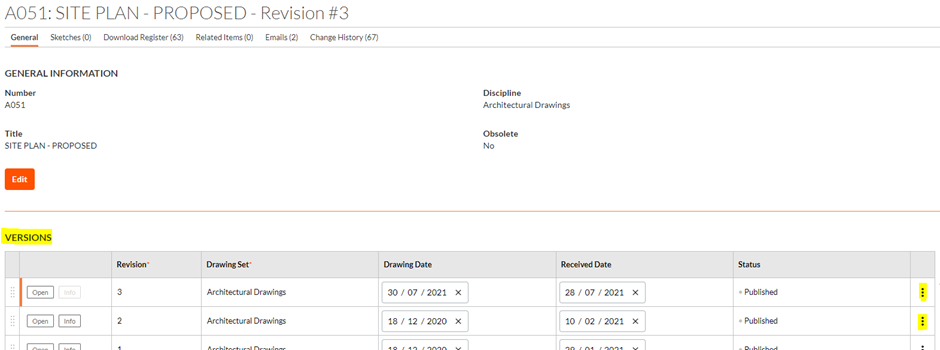
Click Info for the older revision you want to compare i.e. you want to compare revisions 1 and 3, so click Info for revision 1.
Then Click the ellipses/three dots next to that revision and select 'Compare to This Version'.

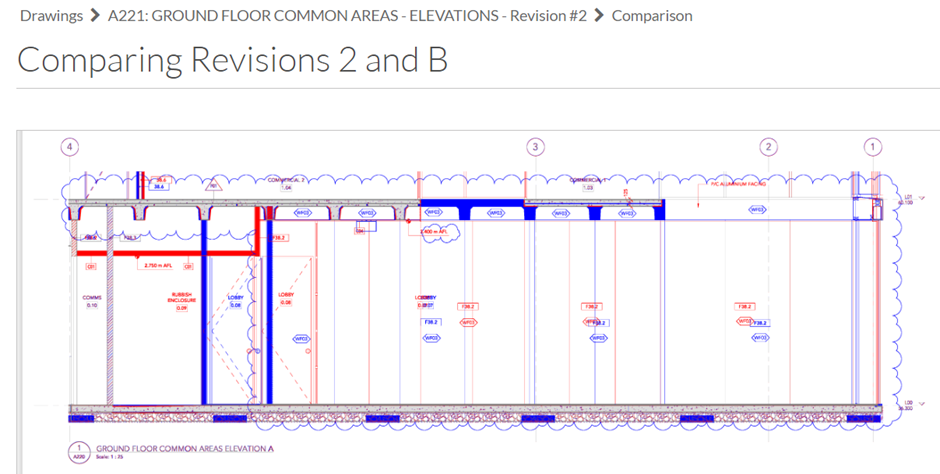
In the next page you will see two colours – blue are items added in this revision and red are items removed in this revision.
Sets
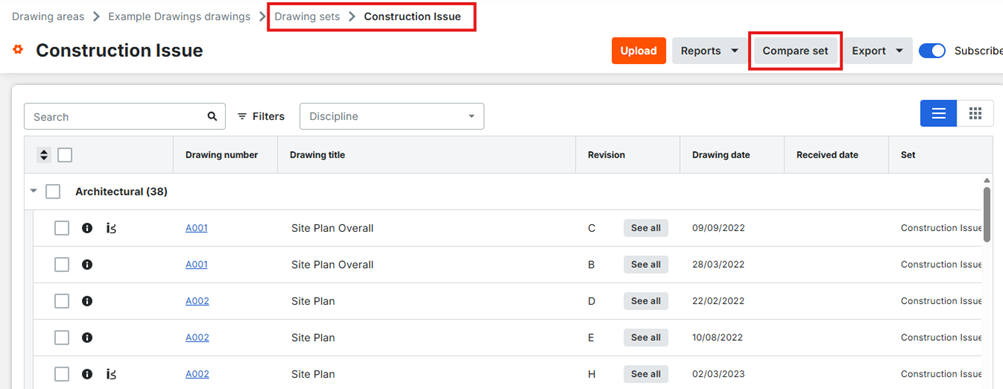
Open the Set you want to compare revisions for (i.e. Construction Issue set).
You will now see a banner saying that the comparison PDF will be emailed to you.
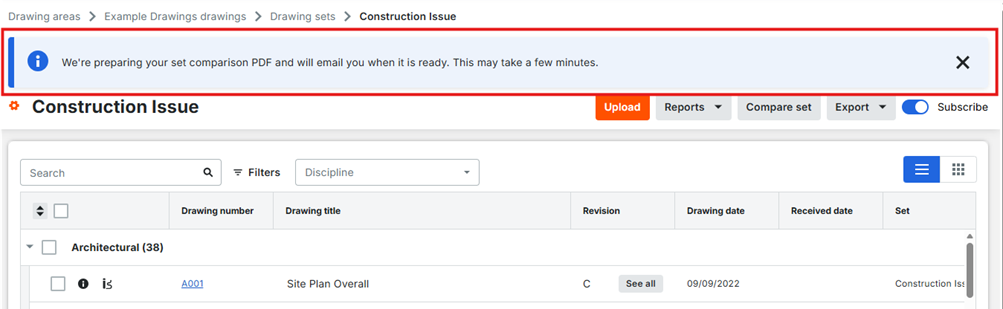
Note that this may take up to 30 minutes depending on how many drawings are in the set.
Was this article helpful?
That’s Great!
Thank you for your feedback
Sorry! We couldn't be helpful
Thank you for your feedback
Feedback sent
We appreciate your effort and will try to fix the article