RFI's
The RFI tool in Procore is important to use to ensure clear and set lines of communication.
Note the process is the same in the mobile app
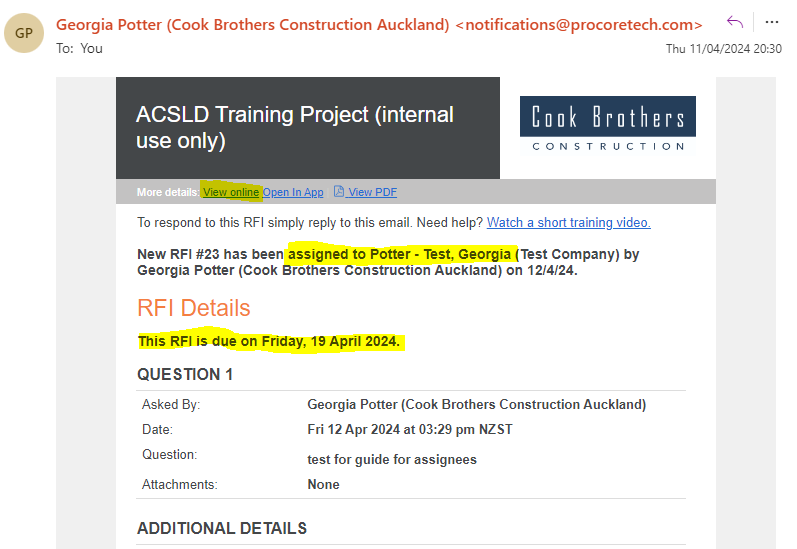
If you have been set as the Assignee or as part of the Distribution group for an RFI, you will receive an email alert.
If you are just part of the Distribution group for it, you should make sure you have read and understood the RFI but no action is required.
The email will note who the Assignee is at the top, as well as the due date:
If you are an Assignee, you will be required to respond to the RFI - this should usually be in the form of a CAN.
To open the RFI in Procore, click View Online at the top of the email.
Viewing a RFI will show you the information input during creation, and will give you the option to Export>PDF.
There will also be an Responses section below the RFI details - this is where you can post a comment/response.
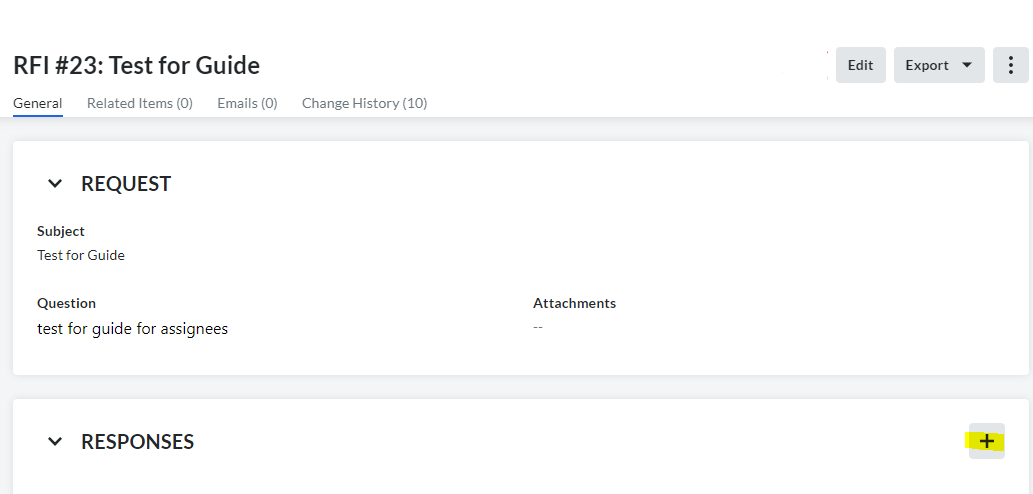
To add a response here, click the + in the Responses section.
If your RFI response necessitates a CAN or a CI (any scope, financial, or time changes), click the RFI and click the three small dots in the top right-hand corner.

- From the list provided, click Create Correspondence and select Consultant Advice Notice (CAN) or Contract Instruction (CI) from the list as required
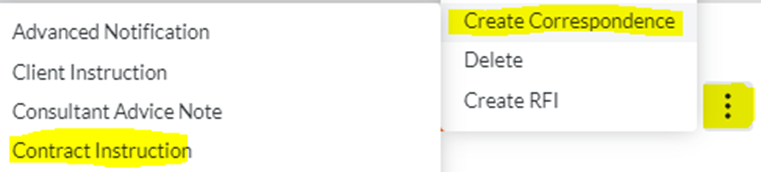
This will take you to the CAN/CI creation page with the RFI automatically linked/referenced.
This ensures clear communication pathways and that the contract conditions are being complied with.
Was this article helpful?
That’s Great!
Thank you for your feedback
Sorry! We couldn't be helpful
Thank you for your feedback
Feedback sent
We appreciate your effort and will try to fix the article