1. Ensure location services are turned on for both the device and the app
2. Sign into your account in 1breadcrumb
3. Go to the host panel and select the hamburger menu button  located in the top left of the screen.
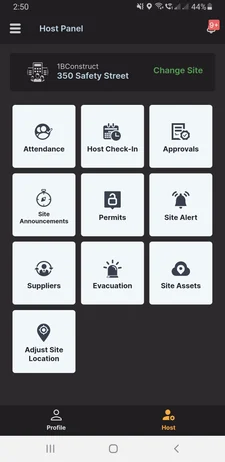
4. Select the site you are on from the drop down menu and input your Breadcrumb password.
5. There will now be options to check in, check out and display the QR code.
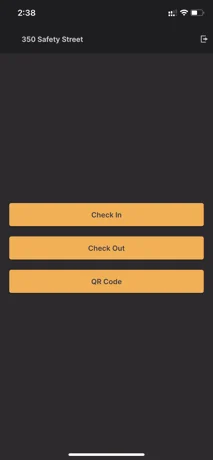
6. Kiosk mode can be exited by tapping the exit button on the top right of the screen and entering your Breadcrumb password.
Was this article helpful?
That’s Great!
Thank you for your feedback
Sorry! We couldn't be helpful
Thank you for your feedback
Feedback sent
We appreciate your effort and will try to fix the article